BYOK Review

A “cyberdeck” is a custom-built portable computer, usually based around a Raspberry Pi or other single-board computer (SBC). Some are mounted inside heavy-duty cases for the apocalypse, others are rough assemblages of parts. Cases often come out of 3D printers, and keyboards are variously spare parts for cellphones, small boards pressed into service, or smaller mechanical keyboards. Screens are often horizontal bars, the kind more often used to display performance stats on high-end gaming PCs. I built one myself a while back from a design I found on Thingiverse, though admittedly I haven’t used it all that much. A “writerdeck” is a device specifically made for distraction-free writing. They’re often what amounts to a cyberdeck set up with a simple word processor (Wordgrinder is a popular choice), often with e-ink or LCD displays. My little setup with an e-ink Android tablet and USB keyboard amounts to a very basic writerdeck and my manual typewriter retroactively became a sort of low-tech writerdeck, but of course people go a lot further than that.
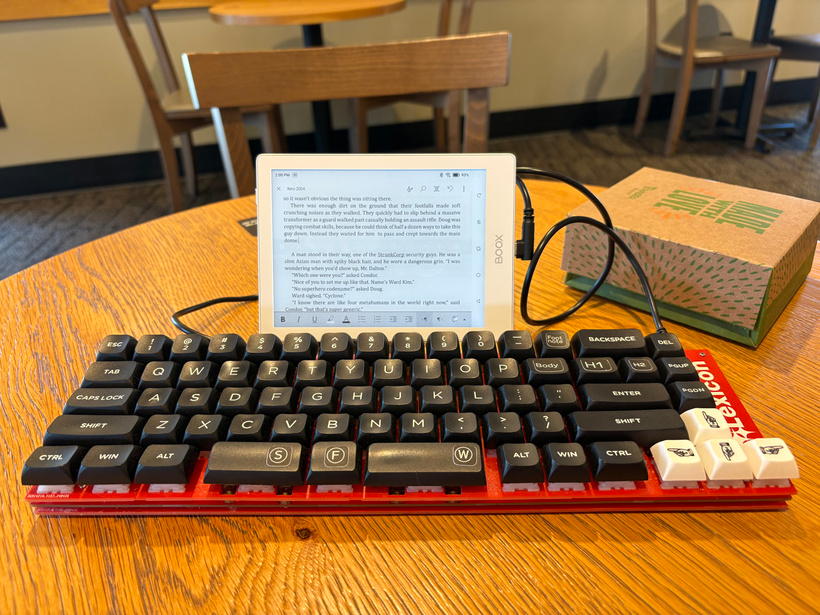
There are open-source designs like the Zerowriter and Micro Journal, and commercial devices like the Pomera and Freewrite. In my experience the former aren’t documented as well as I’d like (though I'm now attempting a Micro Journal Rev.5.1, which looks simpler to build than some others) and the latter tend to be fairly expensive, but despite having spent too much money on gadgets, I decided to preorder the BYOK, or to be pedantic, BYOK’s B01 model. The name is short for “Bring Your Own Keyboard,” because the smartphone-sized device is meant for you to connect your own keyboard via USB or Bluetooth. I’m enough of a mechanical keyboard weirdo for that to be preferable to how most writerdecks have either membrane keyboards (which don’t feel as good to use) or ortholinear mechanical keyboards (which I struggle to use). It goes for about $200, which is roughly half the cost of a typical commercial writerdeck. It’s still a significant chunk of change when you could achieve something similar with a basic smartphone, but it’s very good at what it does.
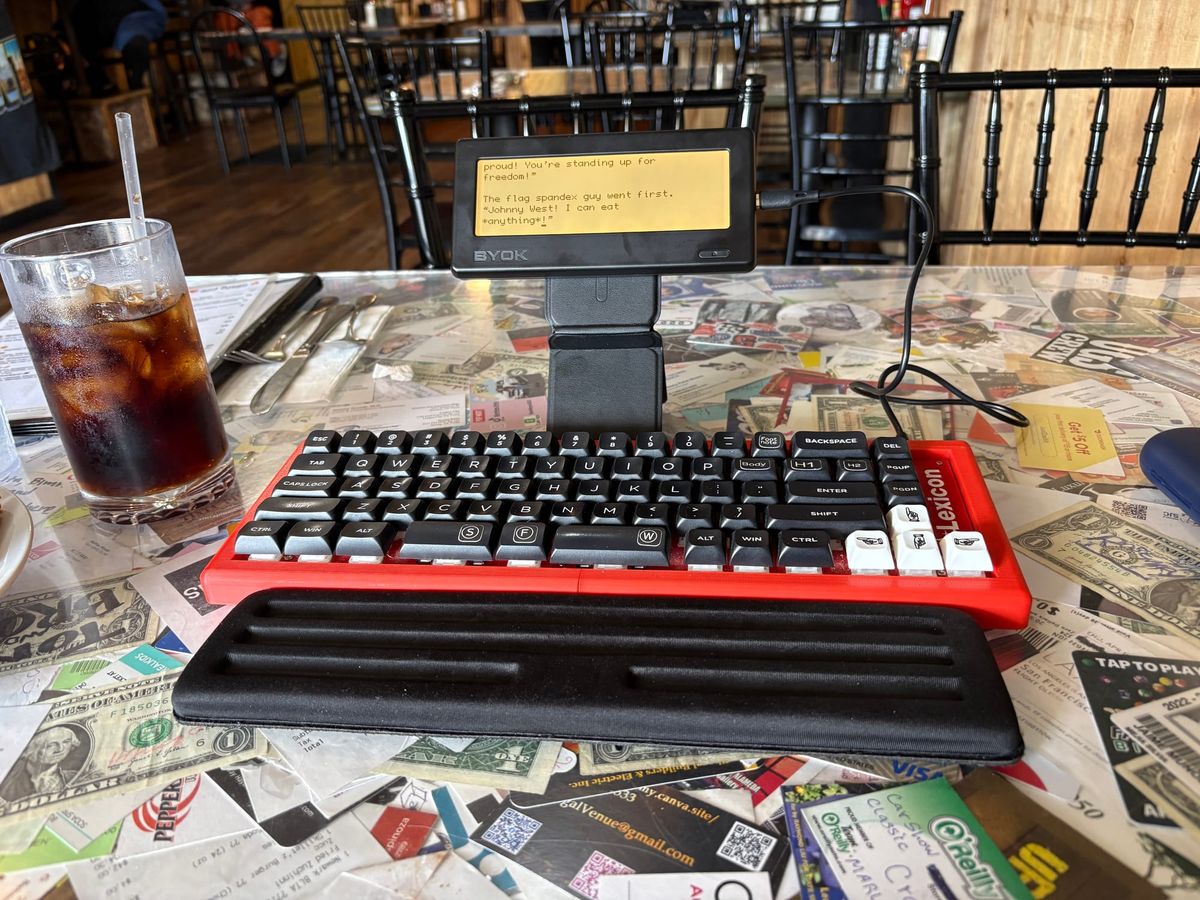
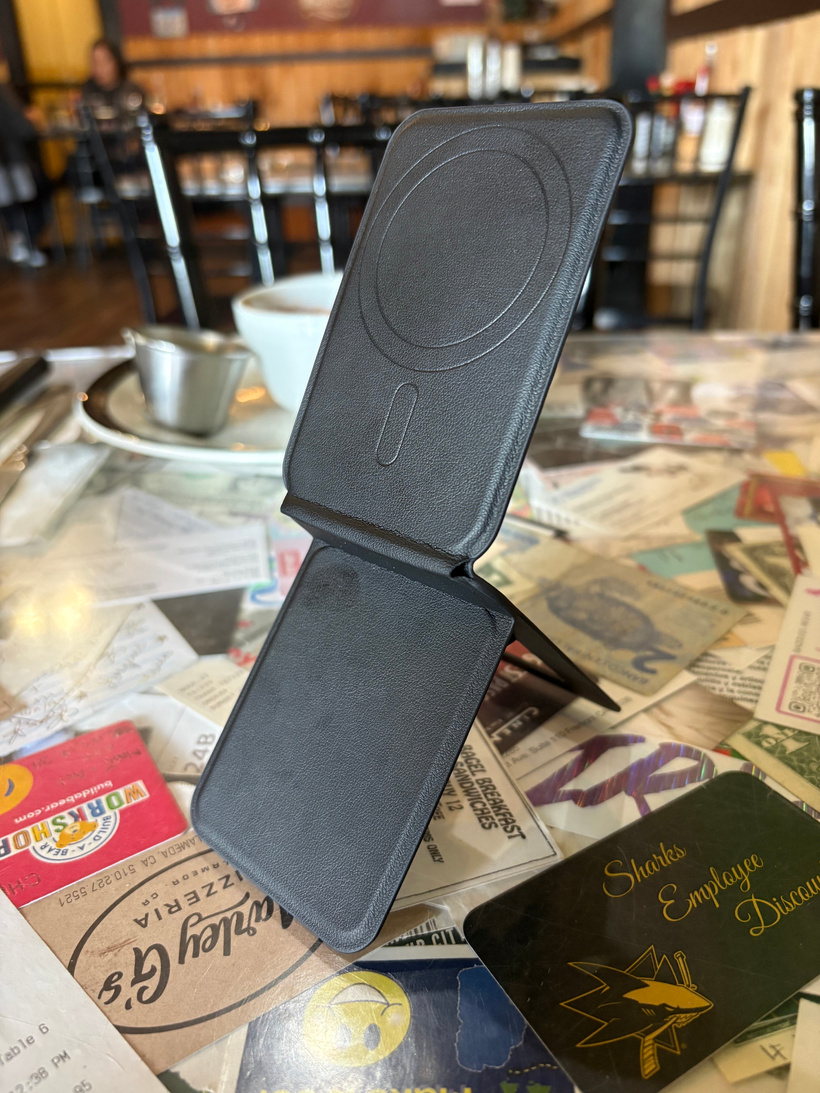
It’s not quite on the level of an Apple device, but the packaging is thoughtful and feels premium. It includes a white braided USB-C cable, a 128MB micro-SD card already in the slot, and a MagSafe stand that attaches to the back. I’d been thinking I would need to buy a stand, so it was nice to just have it in the box. (I ultimately bought a taller one anyway.) The device comes in black or white; I opted for black since it would go better with my red and black Lexicon keyboard. Its casing is made of plastic, but overall it feels solid and even a little weighty. It has a power button and backlit monochrome LCD display on the front, the status indicator LED, USB-C port and micro-SD card slot on the right side, and the MagSafe mount and four buttons for basic navigation and backlight setting on the back. Note that the MagSafe is purely for easy mounting; the BYOK only charges via the USB-C port. While you certainly could switch to a micro-SD card with a higher capacity (though I think you’d have to make sure to copy all the files from the original over), the formats it uses are so minimalistic that 128MB is genuinely plenty unless you need to store a truly massive amount of text. Putting too much data on it would likely make syncing take an interminably long time in the first place though.
While it can also send files to Google Drive and always saves onto the SD card, the BYOK is made to work seamlessly with their Studio app, which is now available on the web, iOS, and Android. Since it’s the way software works now, it has a subscription tier, though that just gives you enhanced capabilities in the form of some other file formats (Manuscript, Grid, Cards, Wiki, and Outline). Without a subscription, it just does plain text format, which is plenty for distraction-free writing. I’ve taken to using _underscores_ for italics and other little flourishes I learned from the internet of the 1990s and then changing them into full-on formatting after I put the text into Word.
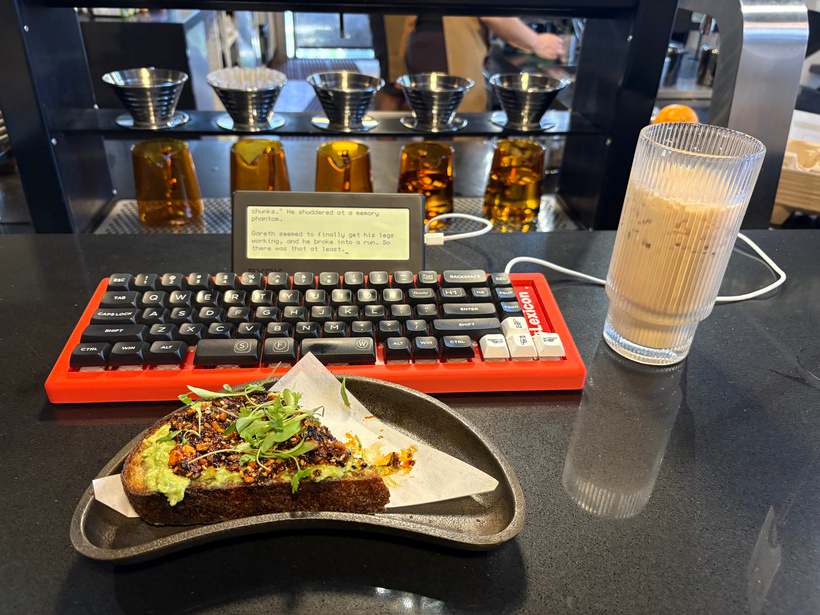
I had a little difficulty figuring out how to get text from my laptop to the BYOK, but once I got over that hump, it was smooth sailing. (See the section at the end for tips aimed at users.) By its nature, the BYOK shows a relatively small amount of text on the screen at a time, and the editing screen is completely free of anything other than your text and a cursor, not even the time or battery level. When writing in Word, I often get distracted with messing with fonts, footnotes, or other flourishes that contribute to the final product, but can be a distraction from the work of putting words down, so this is a refreshingly focused experience. It’s not meant to navigate through a lot of text at a time (though it does have a Find tool; Ctrl-F) and it normally opens a file at its end, so it’s better to break projects up into multiple documents. The result is sort of a midpoint between a full word processor and a typewriter. It’s easy to go back and edit things and not too hard to jump around your manuscript, but it’s a more stripped-down experience, optimal for but not requiring one-way writing.
The monochrome LCD screen is low resolution, but eminently readable. It doesn’t refresh as fast as a smartphone screen, but it’s cheaper and faster than a typical e-ink display. It has a backlight, and you can cycle through brightness setting with a button on the back or by pressing Ctrl-L. The BYOK also has hotkeys for its major commands. It saves files to the SD card automatically, but you can press Ctrl-S at any time to sync.
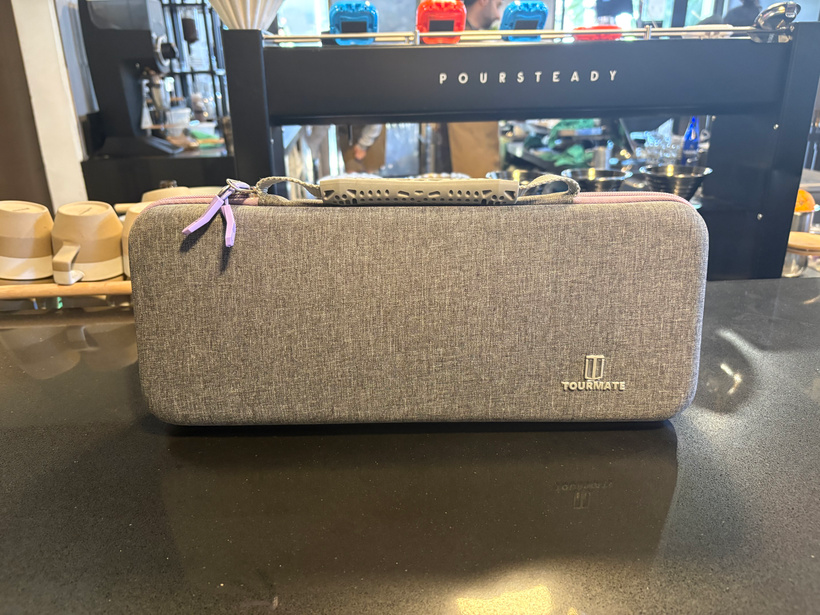
It took a little while, but I now have my portable BYOK setup pretty much figured out. Since I’m using it with my Lexicon keyboard, I got a relatively large case that holds a 65% keyboard with room for accessories. The BYOK goes in a simple pouch made to hold a smartphone, and that goes into the top part of the case along with a black USB cable (I grabbed a cheap one from Daiso just so the colors match) and a MagSafe stand that folds into a flat piece of metal and plastic (which stands about 7 inches tall when fully unfolded). I also included a basic black foam wrist rest, which I really need for ergonomic reasons. My setup needs a flat surface and takes a little longer to get out and put away than a laptop, but it does the job nicely while giving me access to my Lexicon keyboard’s word shortcuts. (I’m thinking I’ll make a variant of the Lexicon firmware set up with BYOK shortcuts; I already have versions for Word, Google Docs, Pages, and LibreOffice.)
There are of course keyboards more portable than my Lexicon (which is a full-height 65%); I own a few myself, most notably my QAZ 35% keyboard. The most popular among BYOK users seem to be the Logitech Keys-To-Go 2, the Dooheek Universal Bluetooth Mini Keyboard, and NuPhy’s low-profile laptop keyboards. Plenty of people are just using big mechanical keyboards though, even 100% boards with numpads. While portability is one of the BYOK’s virtues, it works just fine in a more stationary setup. Per the website’s FAQ, it works with most USB and Bluetooth keyboards but has problems with some of them for whatever reason. Having built dozens of mechanical keyboards both for myself and to sell on Etsy, I can tell you that they do occasionally just refuse to work for no apparent reason, so that’s in no way unique to the BYOK. To their credit, they're actively seeking out boards that don't work so they can fix those problems in future updates.
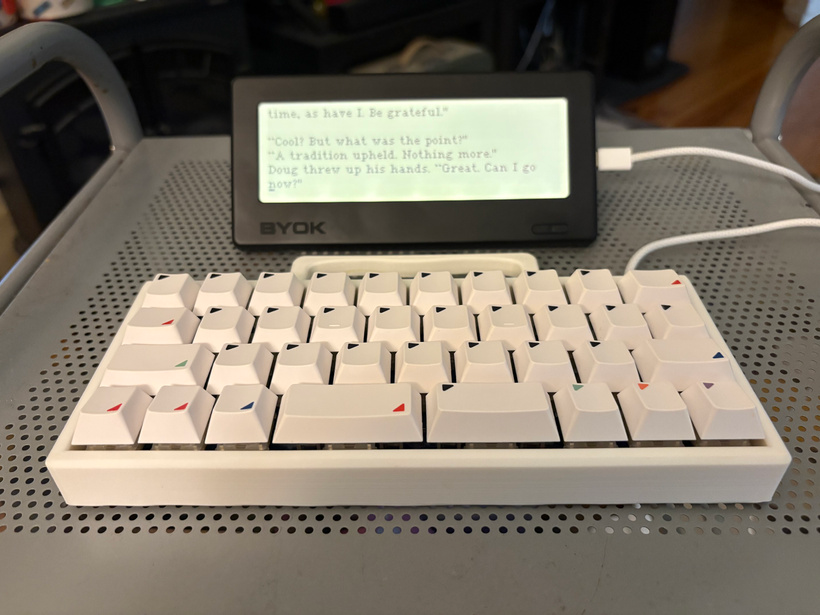
On social media I’ve seen some examples of how other people are using their BYOKs. The most interesting of these is cases where someone has used a car mount to write on the go, both in ordinary cars and big trucks, presumably while parked. I’ve heard stories of the many things truckers set up in their trucks to get through their downtime, and writing is a great option. The MagSafe attachment means there’s a huge number of mounting options available, from the simple ring that comes in the box to floor stands. The prevailing wisdom for ergonomics is that the top of the screen should be at eye level, whereas most writerdecks are either like small laptops or have displays that lay flat. In cars you can use a vent mount, and there are clip mounts as well, making it a comfortable way to write on a plane.
At this point the BYOK is early in its life, with the company still filling preorders and making improvements to the software. While they aren’t planning on open sourcing the firmware, they’ve said they intend to make it possible to do mods to expand its functionality in various ways. Though the BYOK works well for typing in English and can handle French, Spanish, and German, support for other languages is still on the to-do list. The bottom line is that the BYOK has a few quirks and caveats, but it’s a great little device that promises to get even better in the future.
Fun Fact 1: The BYOK company has a YouTube channel, and they call the device the "Byok," as a one-syllable word.
Fun Fact 2: I started writing this review in Word, then realized I really should write it on the BYOK, so I put what I’d written into Studio and finished it on the device.
My BYOK Wishlist
After putting my BYOK through its paces, doing some brainstorming, and skimming the Pomera manual, I came up with a list of features I'd like to see. Admittedly I'm hoping they'll read this and take these under consideration.
- Ability to rename files
- A Reset command in the menus
- Ability to change the menu font
- Ability to sync just the current file
- Ability to turn off sync for all files in a project in Studio
- Ability to add bookmarks/anchors to a document and jump to them
- Ability to jump to a numbered line or paragraph
- Ability to input Unicode characters, with a menu and/or via a keyboard shortcut, preferably based on how Linux does it (Ctrl-Shift-U followed by the hex code). Admittedly I’m biased because that would let me use the Lexicon’s Unicode shortcuts.
Ewen’s BYOK Tips
I had a handful of frustrations getting started with my BYOK, but they have solutions, so I want to share those and the with any current or future owners who might be reading this. Admittedly some of these are things the website does explain.
I’ve found that once in a while my BYOK will glitch a little and only display on part of the screen. Bringing up the status bar by either short-pressing the power button or Ctrl-Space usually fixes it, and turning it off and on again always works. Hopefully future firmware updates will remove the problem entirely.
There currently aren’t any cases made specifically for the BYOK, but since it’s smartphone-sized, there are cases and pouches of the right size on the market. I happened to find one at Five Below (though I later got something slimmer on Amazon), and there are some people making bespoke smartphone pouches and such on Etsy that should work well. A few users have posted pics of cases that they sewed themselves too. The company has made a 3D model of the BYOK available on their website, so it will be easy for someone with the necessary skills to make 3D-printable cases.
The BYOK uses bitmap fonts in its own .byf format. The website has both numerous fonts and a tool to convert .bdf and .psf files. There are a lot of these available online (mostly .bdf in my experience; this repository has some good ones), though not nearly as many as for .ttf vector fonts. While a lot of bitmap fonts are very similar visually, they do vary in terms of how many characters they include. This is an issue if you import text from Word or other software that does things like automatically create opening and closing quotes, which are extended Unicode characters the smaller fonts won’t support. Pixel fonts won’t include every Unicode character (there are almost 300k of them currently), but fonts with 1,000 or more characters can cover basically any extended characters you’d normally use in a document. The BYOK itself only supports basic keyboard input though, so these characters will only enter your documents via Studio. Bitmap fonts vary in size, and by their nature don’t scale the way vector fonts do, so your choice of font directly determines how much text your BYOK can fit on the screen. Both the converter and BYOK’s online font library tell you how many lines the device can display in a given font. For my part I've found tahoma-10 (available from this page) to be in the sweet spot, combining readability, proportional spacing, and a robust character set.
It's possible to convert .ttf and other vector fonts into bitmap form, though it's much easier to do so with bitmap-style fonts. u/hika421 on r/TheBYOK posted a guide.
Update (6/8/2026): The paragraph issue discussed below seems to have been fixed since I first posted this, though search and replace is still helpful for extended punctuation.
When copying content from Studio into Word, I found that it uses hard line breaks. These are easy to remove, but the method isn’t obvious. In Word’s Search and Replace (Ctrl-H in Windows, Command-Shift-H in macOS), ^p represents a normal paragraph break, while ^l (L) is a hard break. When removing the extra breaks between paragraphs, I replaced ^l^l with ^p. Pasting without formatting results in normal line breaks, though still two per paragraph break, so I end up replacing ^p^p with ^p. Search and replace can also efficiently change neutral quotation marks and apostrophes in opening and closing ones (Word parses those automatically if you do a search and replace) and other extended punctuation like ellipses and em dashes. Studio can also export into multiple formats, but I found that exporting to .docx still has the issue with line breaks regardless.
Be aware that when you create a document in Studio, you have to specify which device the file should sync to before it will sync. If you have the file open in Studio and click the Settings icon in the upper right, you can set the Device Sync so it’s linked to your BYOK. If you don’t do that, syncing will not copy the file to the device. This also means that you can choose to have specific files in Studio not sync to your device.
I’ve mentioned some of the BYOK’s hotkeys over the course of this essay/review, but there are some others. Ctrl-Space toggles a status bar that lists the project and document currently open, the current document’s word count, the battery charge, and a few other things. Escape toggles between the menu and the current document. The BYOK website has a reference for all of the hotkeys.